Skip to content
December 5, 2025

Techs & Gizmos

Hands On Review For Latest Gadgets & Gizmos

  • Home
  • Windows
  • Mac
  • Others
    • Tutorials
    • Drivers
  • Privacy Policy
  • Contact Us
Main Menu
Tutorials

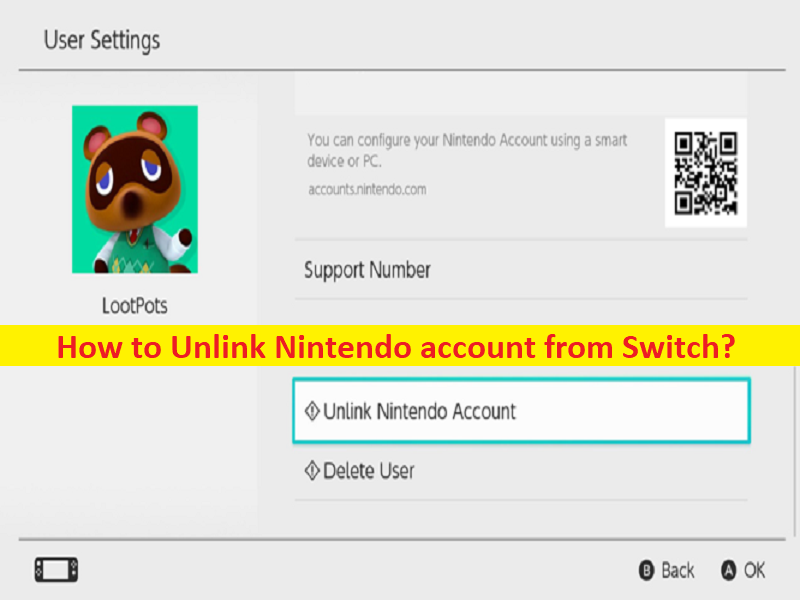
How to Unlink Nintendo account from Switch [Steps]

June 28, 2022 - by Sachin Prakash

Tips to Unlink Nintendo account from Switch:

In this post, we are going to discuss on How to Unlink Nintendo account from Switch. You are provided with easy steps/methods to do so. Let’s starts the discussion.

‘Unlink Nintendo account from Switch’:

‘Nintendo Switch’: Nintendo Switch is video game console designed & developed by Nintendo and released worldwide in most regions on March 2017. The console itself is table that can either be docked for use as a home console or used as portable device, making it a hybrid console. Nintendo Switch’s software supports online gaming through internet connectivity, as well as local wireless ad hoc connectivity with other consoles.

It is quite simple & easy to unlink your account from Nintendo Switch whenever you want. Once you have unlinked your Nintendo account, you won’t be able to find games linked to that account on Nintendo Switch device. If you are looking for ways to Unlink Nintendo account from Switch, then you are in right-place for this. Here you are provided with easy ways to do so. Let’s go for the steps.

How to Unlink Nintendo account from Switch?
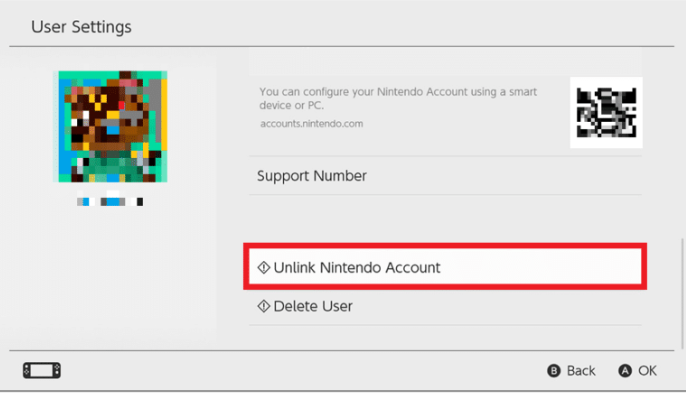
Step 1: Turn ON your Nintendo Switch device and open ‘Home’ menu

Step 2: Click ‘System Settings Gear’ icon and click ‘User Settings’ to select the user account you want to unlink

Step 3: Select the desired Nintendo account and click ‘Unlink Nintendo Account’ option and click ‘Continue > Unlink’ option to confirm account unlinking process.

How to change primary Nintendo Account on Nintendo Switch? How to change Nintendo Account on Nintendo Switch?

Step 1: Unlink Existing Nintendo account

  • Turn On your Nintendo Switch device and open ‘Home’ menu and click ‘System Settings’ gear icon
  • Click ‘User Settings’ and select ‘User Account’ you want to unlink and then click ‘Unlink Nintendo Account’ option and confirm the process

Step 2: Link new primary Nintendo account

  • On Nintendo Switch, open ‘Home’ menu and go to ‘Settings > User Settings’ and click ‘Link Nintendo Account’ option
  • Select and click on any option, as preference ‘Sign In and Link’ or ‘Create Account’ in order to sign into existing account or create a new user account

How to unlink a Nintendo Account from a Banned or Lost switch?
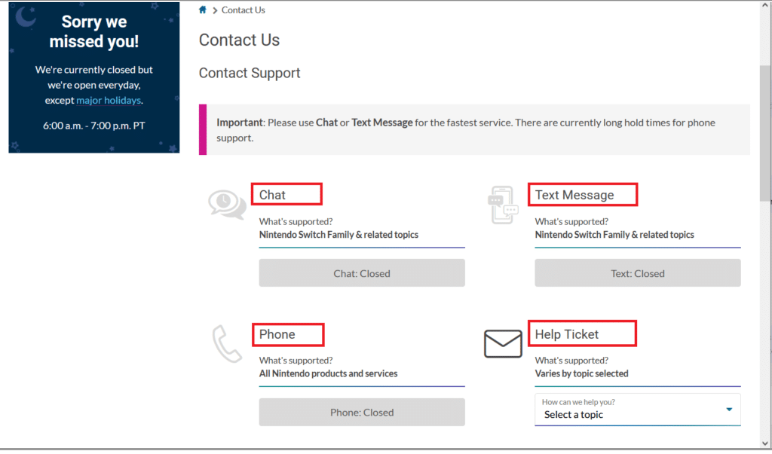
Nintendo Switch holds the right to ban your account if you are caught doing illegal activities like cheating in the games, providing false payment information, using pirated games, or even modifying their games in an illegal manner. If you share your game with another switch, then only one account can log into game at a time. If you want to unlink your Nintendo account from banned or lost switch, then you can contact Nintendo Customer Care via:

  • Text/Chat Message for the fastest service.
  • or toll-free number: 1-800-255-3700.

How to un-register a Nintendo Account from a Nintendo Switch?

Step 1: Open up ‘eShop’ app using the orange shopping bag icon on your switch device

Step 2: Click ‘User’ icon at top-right corner and click Orange button starting ‘Deregister’ and click Deregister again to conform.

How to delete a user profile on Nintendo Switch?

Step 1: On Nintendo Switch, open ‘Home’ menu and click ‘System Settings Gear’ icon

Step 2: Locate ‘User Profile’ you want to delete. Scroll down and click ‘Delete User’, tick ‘Delete’ checkbox and hit ‘Next’

Step 3: Click ‘Delete this user’ option to complete deleting process.

Conclusion

I am sure this post helped you on How to Unlink Nintendo account from Switch with easy ways. You can read & follow our instructions to do so. That’s all. For any suggestions or queries, please write on comment box below.
TaggedNintendo SwitchUnlink Nintendo account from Switch

Related Posts

How to fix Windows Has Detected an IP Address Conflict Error?

September 4, 2024

How to fix “DNS_PROBE_FINISHED_BAD_CONFIG Error”?

September 4, 2024September 4, 2024

How to fix Skype Playback device Error on Windows 11/10?

August 31, 2024

Post navigation

Previous Article How to fix no internet connectivity when hotspot is enabled in Windows?
Next Article How to Restore deleted world in Minecraft on Windows 10 [Steps]

About Sachin Prakash

View all posts by Sachin Prakash →

Recent Posts

  • How to fix Windows Update Error 0x80070422 Manually?
  • How to fix Windows Update Error 0x80070020?
  • How to fix Windows Update Error 0x80070003? Simple and Easy Methods
  • How to fix Windows Update Error 0x80070017?
  • How to fix Windows Update Error 0x80070002? Simple and Easy Methods
  • How to fix Service Registration is Missing or Corrupt Error?
  • How to fix Outlook Error 0x800ccc0f?
  • How to fix Outlook Error Code 0x8004210A? Simple and Effective & Methods
Copyright © 2025 Techs & Gizmos.
Powered by WordPress and HitMag.
We use cookies on our website to give you the most relevant experience by remembering your preferences and repeat visits. By clicking “Accept All”, you consent to the use of ALL the cookies. However, you may visit "Cookie Settings" to provide a controlled consent.
Cookie SettingsAccept All
Manage consent

Privacy Overview

This website uses cookies to improve your experience while you navigate through the website. Out of these, the cookies that are categorized as necessary are stored on your browser as they are essential for the working of basic functionalities of the website. We also use third-party cookies that help us analyze and understand how you use this website. These cookies will be stored in your browser only with your consent. You also have the option to opt-out of these cookies. But opting out of some of these cookies may affect your browsing experience.
Necessary
Always Enabled
Necessary cookies are absolutely essential for the website to function properly. These cookies ensure basic functionalities and security features of the website, anonymously.
CookieDurationDescription
cookielawinfo-checkbox-analytics11 monthsThis cookie is set by GDPR Cookie Consent plugin. The cookie is used to store the user consent for the cookies in the category "Analytics".
cookielawinfo-checkbox-functional11 monthsThe cookie is set by GDPR cookie consent to record the user consent for the cookies in the category "Functional".
cookielawinfo-checkbox-necessary11 monthsThis cookie is set by GDPR Cookie Consent plugin. The cookies is used to store the user consent for the cookies in the category "Necessary".
cookielawinfo-checkbox-others11 monthsThis cookie is set by GDPR Cookie Consent plugin. The cookie is used to store the user consent for the cookies in the category "Other.
cookielawinfo-checkbox-performance11 monthsThis cookie is set by GDPR Cookie Consent plugin. The cookie is used to store the user consent for the cookies in the category "Performance".
viewed_cookie_policy11 monthsThe cookie is set by the GDPR Cookie Consent plugin and is used to store whether or not user has consented to the use of cookies. It does not store any personal data.
Functional
Functional cookies help to perform certain functionalities like sharing the content of the website on social media platforms, collect feedbacks, and other third-party features.
Performance
Performance cookies are used to understand and analyze the key performance indexes of the website which helps in delivering a better user experience for the visitors.
Analytics
Analytical cookies are used to understand how visitors interact with the website. These cookies help provide information on metrics the number of visitors, bounce rate, traffic source, etc.
Advertisement
Advertisement cookies are used to provide visitors with relevant ads and marketing campaigns. These cookies track visitors across websites and collect information to provide customized ads.
Others
Other uncategorized cookies are those that are being analyzed and have not been classified into a category as yet.
SAVE & ACCEPT