What is ‘PIN not working’ issue in Windows 10?
In this post, we are going to discuss on How to fix PIN not working Windows 10, Windows 10 login PIN not working. You will be guided with easy steps/methods to resolve the issue. Let’s starts the discussion.
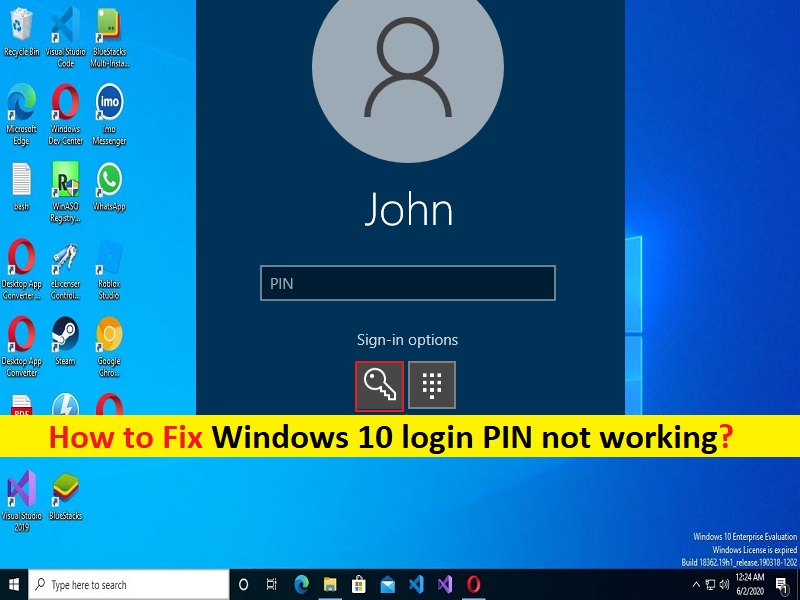
‘PIN not working Windows 10’: It is common Windows Problem considered as Windows Hello problem or Windows 10 PIN not working issue. Microsoft Windows Hello offers you to log into your computer using PIN. To log into your computer with Windows Hello, you need to enter required PIN in order to complete login and to see Windows desktop. However, several users reported they faced PIN not working Windows 10, Windows 10 login PIN not working issue.
They explained when they attempt to login into their Windows 10 computer by entering PIN, they experience they can’t log into computer anymore. One possible reason behind the issue can be wrong PIN or old PIN you are entering in order to login into Windows computer. Another possible reason behind the issue interference of antivirus/firewall, incorrect PIN you are entering, CapsLock is ON, incorrect system settings, issue with login-screen language, and others. It is possible to fix the issue with our instructions. Let’s go for the solution.
How to fix PIN not working Windows 10?
Method 1: Turn OFF CapsLock
Check if the CapsLock and numeric lock while you are at login screen and enter the PIN/password accordingly. You can turn OFF capslock on keyboard in order to remove the conflict and check it works for you.
Method 2: Check login screen language
This issue can be occurred due to language selected on login screen on Windows computer. You can select correct language option in order to fix. You will find the option at bottom right-corner of screen and select ‘Eng’ or ‘En’ for English or select the language according to your password, and check if it works for you.
Method 3: Make sure you select correct user account
If you PC have multiple user accounts, then it might possible you have selected wrong User account for Windows 10 login with the PIN you are trying. You should make sure you have selected correct user account in order to Windows 10 login with PIN.
Method 4: On-screen keyboard
It might possible this issue some issue with your keyboard attached into computer. In such case, you can try on-screen keyboard for Windows 10 login and check if it works.
Method 5: Restart your computer
Sometimes, this type of issue is occurred due to some temporary issues in your Windows computer. You can just restart your computer in order to fix the issue. After restart, select the correct user account and retry entering the correct PIN to login, and check if it works.
Method 6: Remove battery
This issue can be occurred due to some temporary issue with your laptop battery. You can remove laptop’s battery and connect your laptop using a power cord and then try again.
Method 7: Use password
If you are unable to login into your Windows computer using PIN, you can try to sign-in into your account using password. To do so, you need click on select Microsoft account password button and enter the correct password to sign-in.
Method 8: Forget PIN
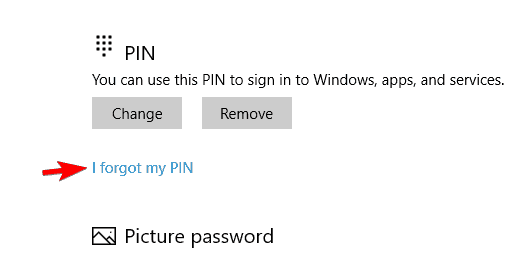
You will experience this option right the box where you enter Windows PIN. Click on ‘Forget PIN’ once and follow on-screen instructions to reset your PIN. That will involve entering your Microsoft account email ID to receive a confirmation email that you want to change it and it’s not someone else trying to break into your computer. You can enter the captcha and you should receive a code via email that you will enter to verify your identity and then you will be asked to create a new PIN/password. Once done, check if it works for you.
Method 9: Admin account
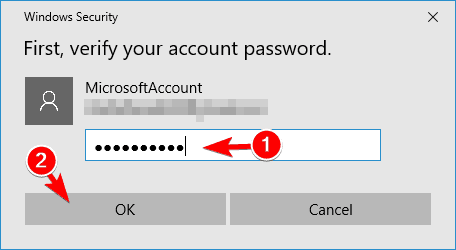
This issue is exactly why you should have another admin or guest account as backup. You can simply reset the password/PIN or create/delete user account using Admin account. So, you can login into Admin account and perform this and once done, check if the issue is resolved.
Method 10: What to do after gaining access to computer
Step 1: Note down PIN/Password and security answer offline
Step 2: Create a new PIN if required
Step 3: Create a new user account due to corruption in older user account
Step 4: Create a new/spare admin account.
Method 11: Can’t create a new PIN
If you are unable to set a new PIN, then empty the contents of NGC folder in File Explorer inside ‘C:\Windows\ServiceProfiles\LocalService\AppData\Local\Microsoft’ path. Once deleted, you should be able to create a new PIN.
Method 12: Group Policy Editor
Step 1: Open ‘Group Policy Editor’ app from Start Menu and go to following path
Administrative Templates > System > Logon
Step 2: Double-click on ‘Turn ON convenience PIN Sign-in’ to open its Properties. Select ‘Enabled’ option and save the changes and once done, check if the issue is resolved.
Conclusion
I am sure this post helped you on How to fix PIN not working Windows 10, Windows 10 login PIN not working with easy steps/methods. You can read & follow our instructions to do so. That’s all. For any suggestions or queries, please write on comment box below.