Airplane Mode Feature in Windows 10 helps you to stop all the wireless communications such as WI-FI Bluetooth, Near Field Communication, Global Positioning System and Cellular. In plane or other locations that strictly prohibits the use of radio signals you need to use this option to quickly disable all wireless devices.
Airplane mode also helps in battery saving and the wireless devices will then not use the additional power to scan, connect and transmit signals to nearby networks or cellular towers. Therefore, you need Airplane mode feature on Windows 10 on different occasions.
Once enabling the Airplane mode, you can’t use the internet services or other local networks. Also, it prevents your device to connect to Wi-Fi, Bluetooth, cellular data or GPS while enabled. So, when there is no need of it, you require disabling this feature to use such services again.
There are different methods how to turn off/ on Airplane mode on Windows 10. You can do this through options on the desktop, settings app, lock screen, dedicated key on the keyboard and even with Command Prompt. In this article, we will walk through the different methods how to turn off Airplane mode Windows 10.
Different Methods to Turn off Airplane Mode Windows 10
On Windows 10, you can enable Airplane Mode at least six different ways. These all are discussed below in step-by-step manner:
Turn off Airplane Mode using Function key
There is a dedicated hardware key on some computers to turn off Airplane Mode. If your computer support that function, you can simply press the function key + Airplane key to turn on this feature. And, again clicking the function key + Airplane key turns off this feature.
Use Action Center to Turn off Airplane Mode
You can enable and disable the Airplane mode using Action Center. Here are the steps:
- Go to the Action Center, which is located on the bottom-right side of the screen,
- Click on Expand and then on Airplane mode that enables this feature,
- To turn Airplane mode, click on the Airplane mode button again.
Turn off Airplane mode Windows 10 using Network flyout
To turn on/ off Airplane mode using Network Flyout, use the below steps:
- Click on Network button on the notification area,
- Now, click on Airplane button to turn it on,
- To turn it off, simply click on the button again.
Use Settings app to turn off Airplane mode Windows 10
To enable/ disable Airplane mode Windows 10 using settings app, use the below steps:
- Open Settings,
- Click on Network & Internet,
- Now, click on Airplane mode,
- Turn the toggle to the left and right to turn it off and on respectively.
Use Lock Screen to turn on/ off Airplane Mode
To turn off/ on Airplane mode using lock screen, follow the below steps:
- Start your device and click on network icon without sign in,
- You will find the switch to toggle Airplane mode on/off.
Turn off airplane mode windows 10 command prompt
You can use command prompt to enable/ disable this feature by using a common to modify the registry:
- Open Command Prompt as Admin,
- Type the below command in the command line and hit Enter to enable this feature:
HKEY_LOCAL_MACHINE\SYSTEM\CurrentControlSet\Control\RadioManagement\SystemRadioState /ve /t REG_DWORD /d 1 /f
- Use the below command to turn off Airplane mode Windows 10:
HKEY_LOCAL_MACHINE\SYSTEM\CurrentControlSet\Control\RadioManagement\SystemRadioState /ve /t REG_DWORD /d 0 /f
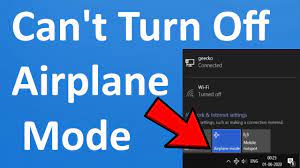
What if turn off airplane mode windows 10 greyed out?
If Windows is stuck in Airplane, here are the few things that you should do. But, before doing that, you should firstly make ensure if the device has a physical WI-FI ON/OFF button or switch is set to the On option. If you cannot get the feature to work, follow these troubleshoots:
- Restart your computer and then and press the function key combo. On the turn off Airplane mode Windows 10 login screen, sign in and toggle the option on or off to see if it makes any difference.
- Unplug everything like your cables, power code, USB and etc and power down your device. Wait for a minute and power it and see if this helps.
- Open Device Manager and go to the Network adapters, and check there if any WAN Mininiport has a yellow mark against it, if yes, you would have to uninstall and reinstall it again,
- Type regedit in the taskbar search, right-click on the search results and select Run as Admin and then navigate to HKEY_LOCAL_MACHINE\System\CurrentControlSet\Control\Class. Right-click on the Class, and press Find, search for RadioEnable and enter value 1. If RadioEnable does not exist, you should create it.
Conclusion
That’s all! We are now rounding off the article. We have provided detailed guide how to turn off Airplane mode Windows 10. We have also discussed what to do when turn off airplane mode windows 10 greyed out.
If the provided methods to fix the problem do not work, there could be Widows related issues causing the problematic. In that case, we strongly recommend you use PC Repair Tool to find and fix the possible issue.